

People, roles and permissions
AutoTestX has three levels of access:
| Level | Roles | Controls |
|---|---|---|
| Platform (sign-in accounts) | Platform administrator, Member | Who may manage sign-in accounts (Accounts). Grants nothing inside projects. |
| Organization | Administrator, Member | Org administrators create projects, invite people, and are Admin in every project of the organization. Members see only projects they are added to. |
| Project | Admin, Test Manager, Test Developer, Tester, Viewer | What someone can do with that project’s tests and settings |
A role belongs to a project membership, not to a person. The same person can be Test Developer in one project and Viewer in another.
The five project roles
Section titled “The five project roles”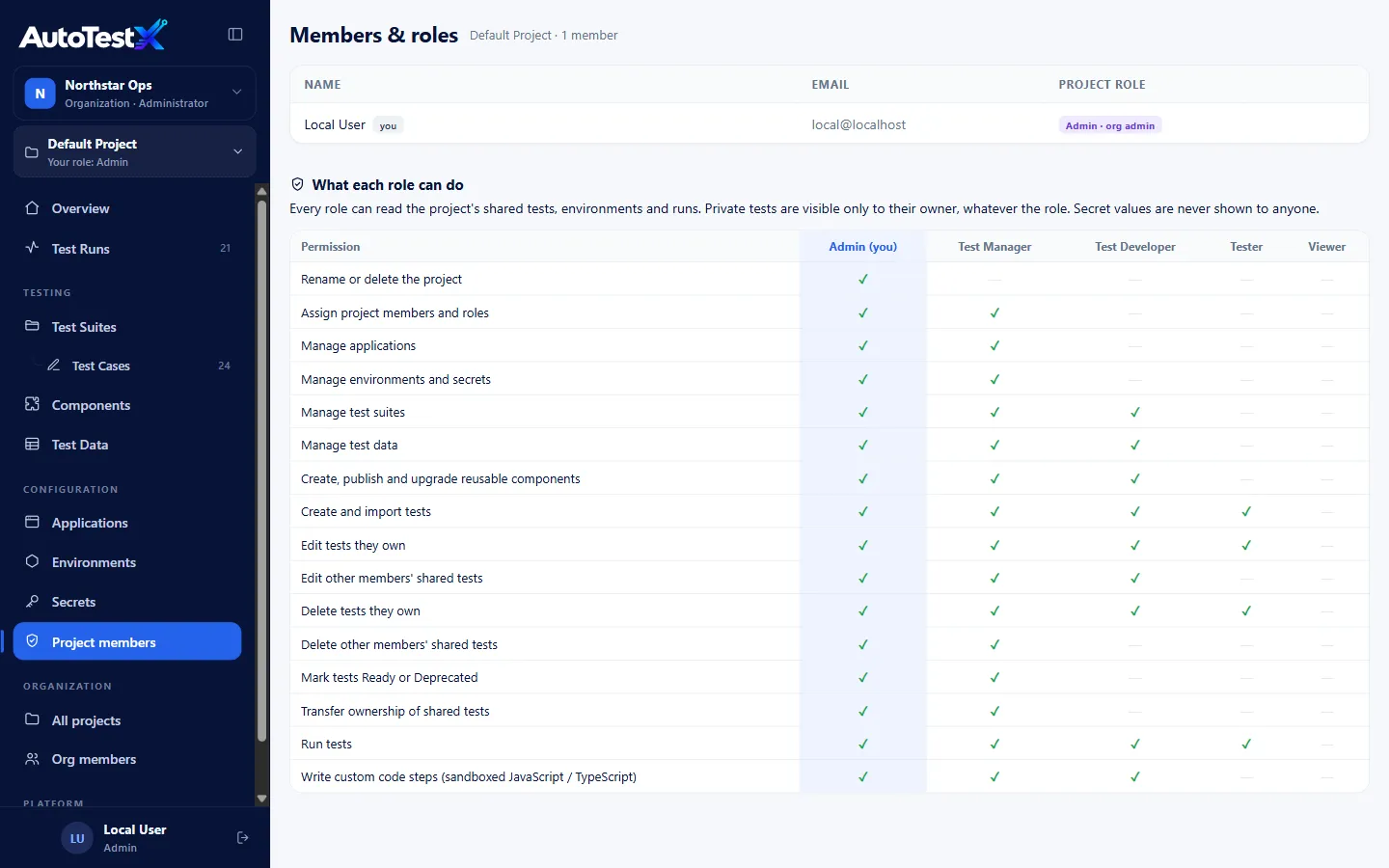
| Permission | Admin | Test Manager | Test Developer | Tester | Viewer |
|---|---|---|---|---|---|
| Rename or delete the project | ✓ | — | — | — | — |
| Assign project members and roles | ✓ | ✓ | — | — | — |
| Manage applications | ✓ | ✓ | — | — | — |
| Manage environments and secrets | ✓ | ✓ | — | — | — |
| Manage test suites | ✓ | ✓ | ✓ | — | — |
| Manage test data | ✓ | ✓ | ✓ | — | — |
| Create, publish and upgrade reusable components | ✓ | ✓ | ✓ | — | — |
| Create and import tests | ✓ | ✓ | ✓ | ✓ | — |
| Edit tests they own | ✓ | ✓ | ✓ | ✓ | — |
| Edit other members’ shared tests | ✓ | ✓ | ✓ | — | — |
| Delete tests they own | ✓ | ✓ | ✓ | ✓ | — |
| Delete other members’ shared tests | ✓ | ✓ | — | — | — |
| Mark tests Ready or Deprecated | ✓ | ✓ | — | — | — |
| Transfer ownership of shared tests | ✓ | ✓ | — | — | — |
| Run tests | ✓ | ✓ | ✓ | ✓ | — |
| Write custom code steps | ✓ | ✓ | ✓ | — | — |
Every role can read the project’s shared tests, environments (names only, never secret values) and runs.
Private tests are visible only to their owner, whatever the role, Admin included.
Only an Admin can give or take away the Admin role, so a Test Manager cannot promote someone to the one role that can delete the project.
The same table is shown on Project members → What each role can do.
Choosing roles
Section titled “Choosing roles”| Person | Suggested role |
|---|---|
| QA lead who approves tests for regression | Test Manager |
| Automation engineer building components and custom code | Test Developer |
| Business tester recording and running their own tests | Tester |
| Stakeholder who reads results | Viewer |
Project members
Section titled “Project members”Project members lists everyone with a role in the current project. Test Managers and Admins can change a member’s role or remove them. Organization administrators appear as Admin · org admin, and their access comes from the organization.
Organizations and projects
Section titled “Organizations and projects”All projects (organization administrators) lists the organization’s projects:
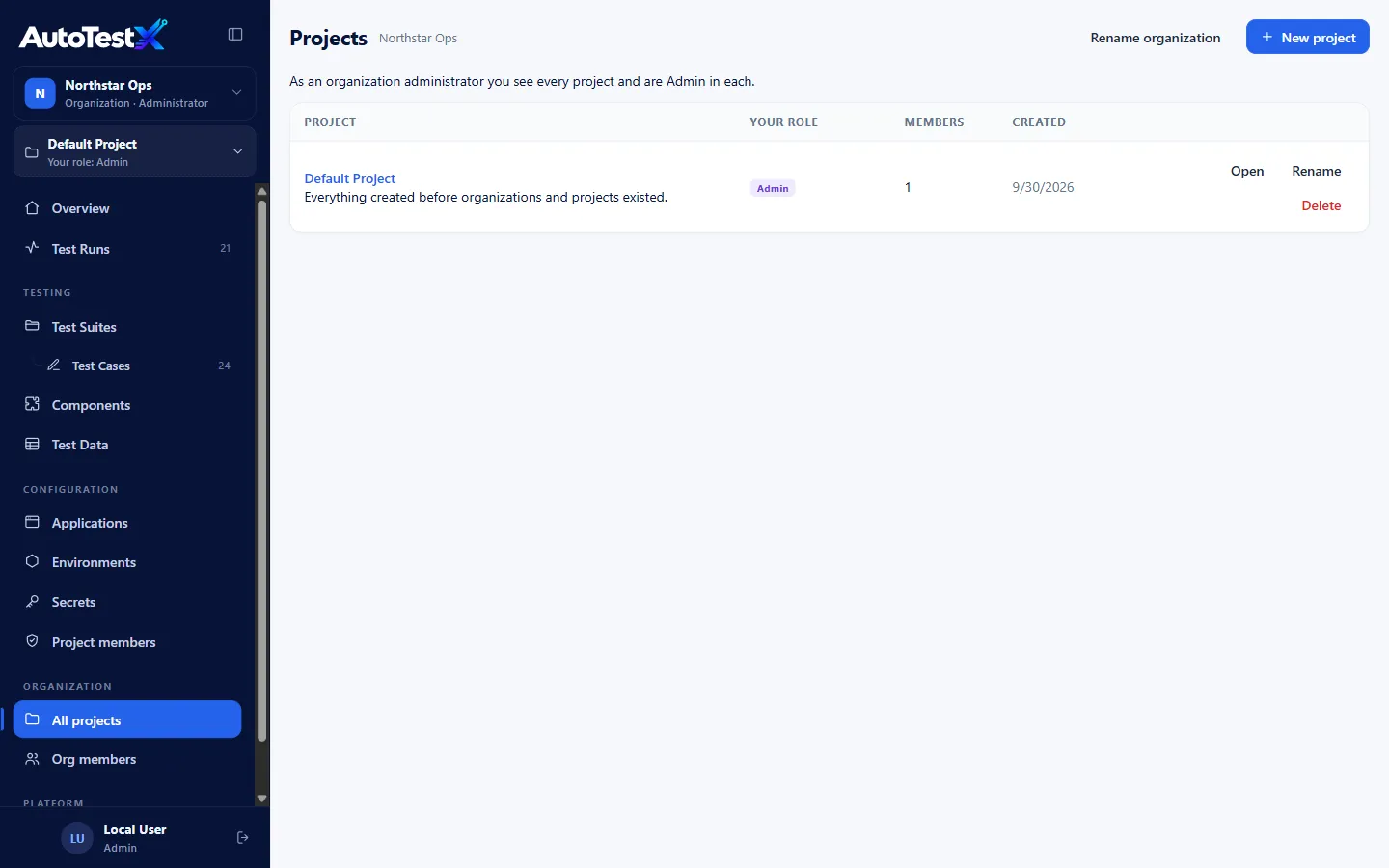
- New project: name and description.
- Rename / Delete a project. Deleting needs the project Admin role.
- Rename organization.
A new organization can be created from the organization switcher (New organization). Whoever creates it becomes its administrator, and can create its first project at the same time.
Everything in a project (tests, environments, data, runs) is isolated from every other project. A request for another project’s record is refused and written to the audit log.
Org members
Section titled “Org members”Org members lists the organization’s people, their organization role and their projects.
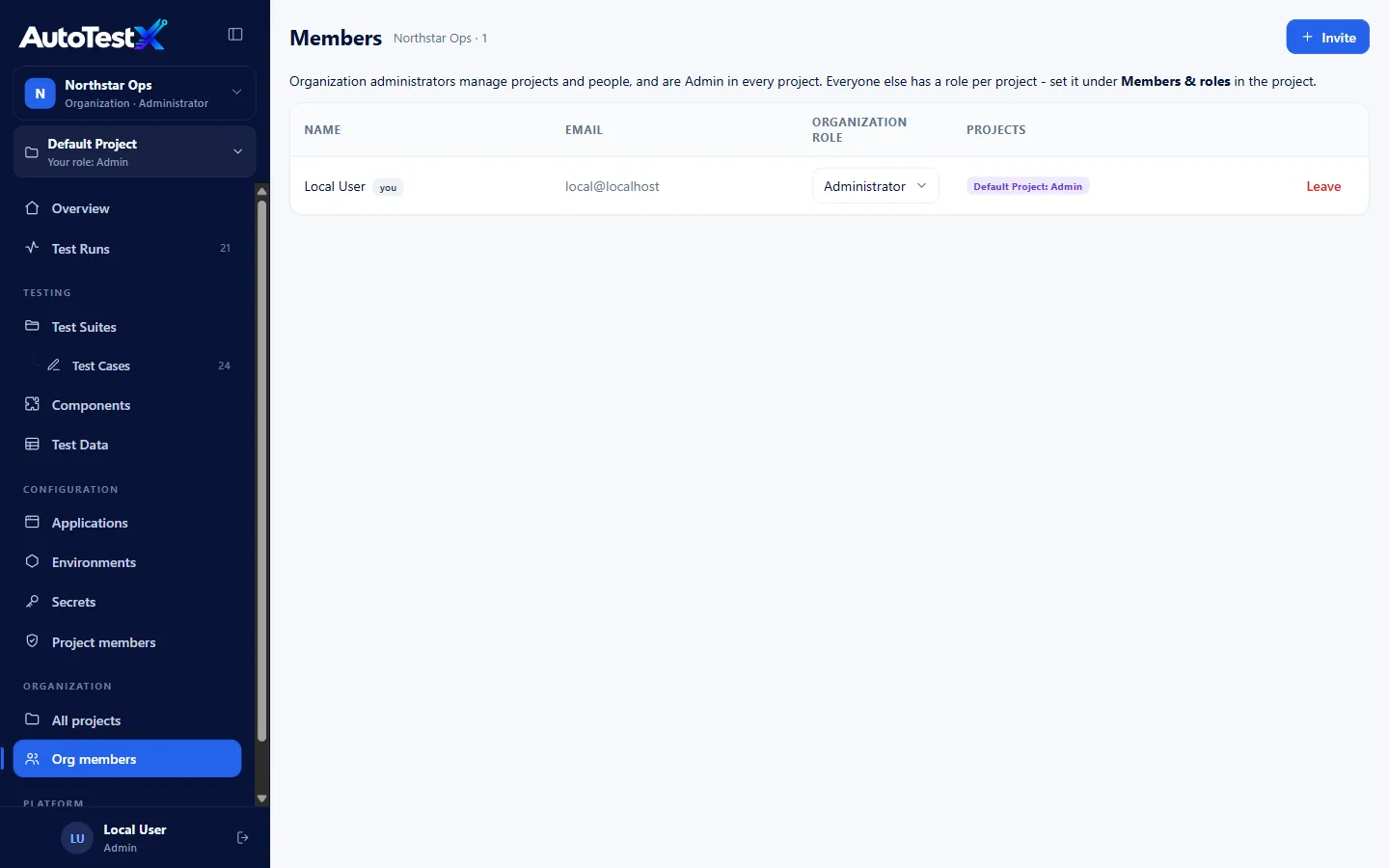
Invite adds a person:
| Field | Notes |
|---|---|
| Email, Name | Someone without an account gets one |
| Organization role | Member (access to the projects they are added to) or Administrator (every project, people and settings) |
| Add to project, Project role | Optional: give a project role straight away |
The invited person sets their password with Forgot password? on the sign-in page, which proves they own the address. See First sign-in.
Accounts
Section titled “Accounts”Accounts (platform administrators) lists every sign-in account on the server.
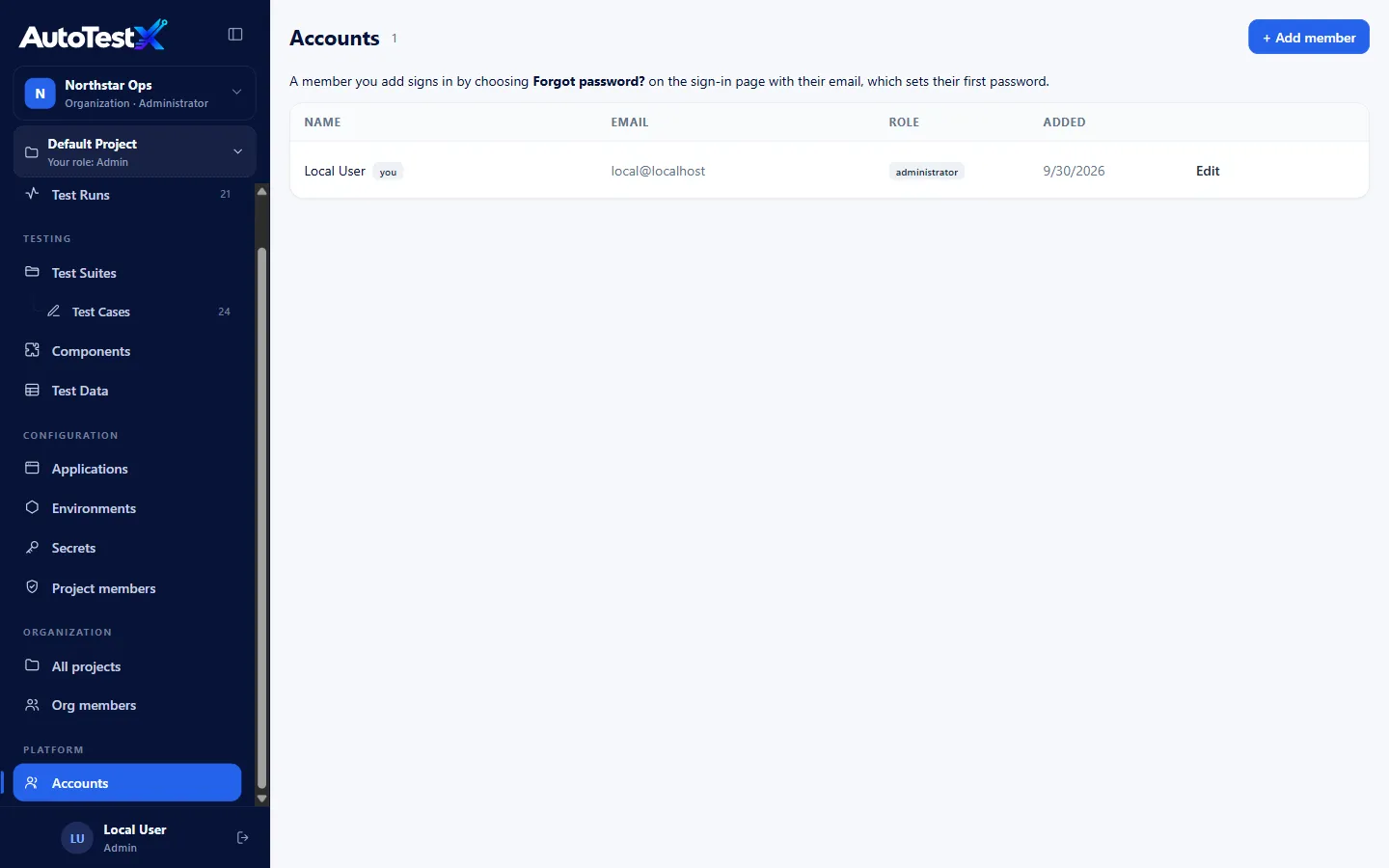
- + Add member: name, email and platform role.
- Edit: change name, email or platform role.
The platform role only controls who manages accounts. What someone can do in a project is their project role.