

Navigating the app
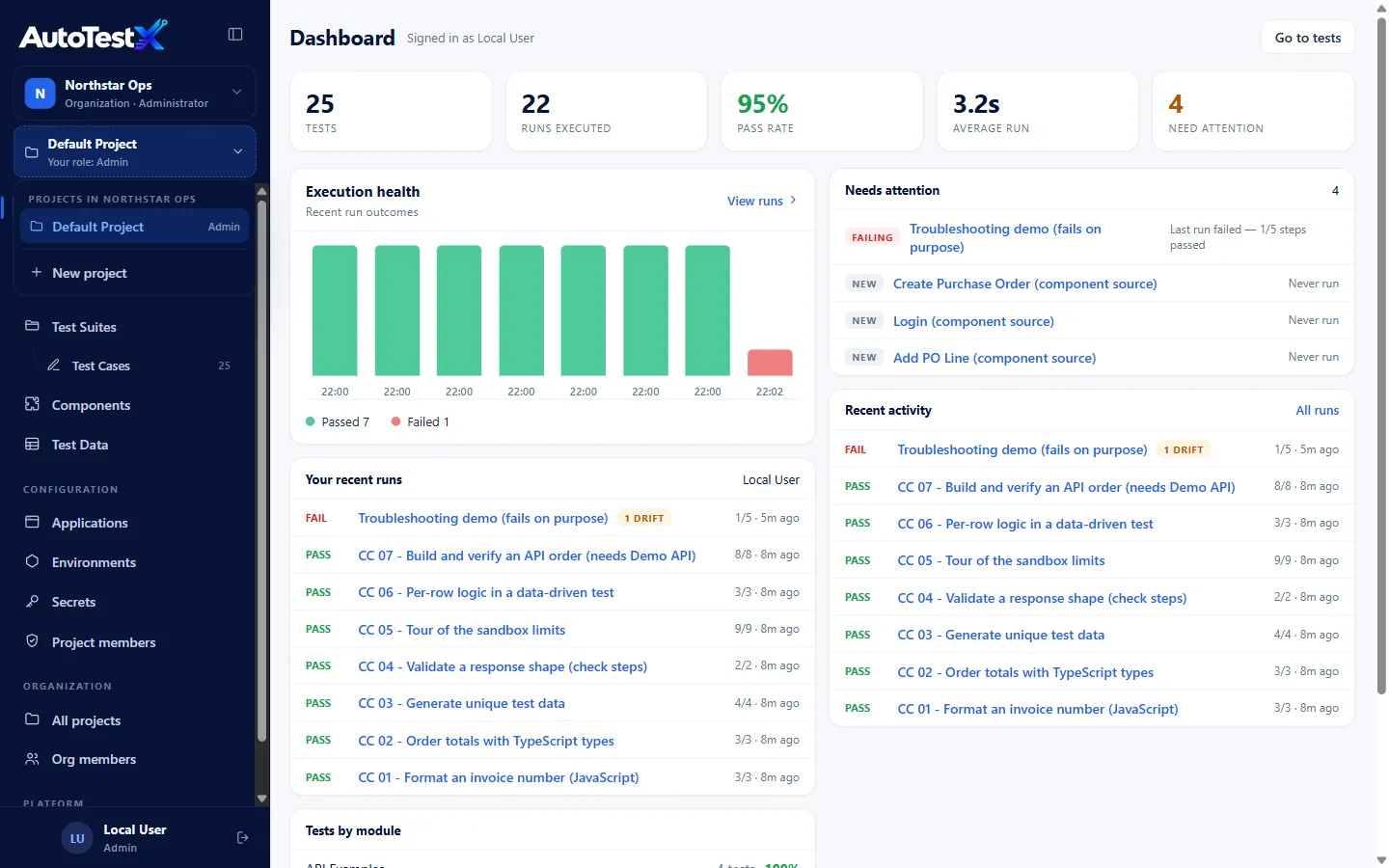
The sidebar
Section titled “The sidebar”From top to bottom:
| Section | Items | What they are for |
|---|---|---|
| Organization switcher | e.g. Northstar Ops · Organization · Administrator | Switch organization, or create a new one |
| Project switcher | e.g. Default Project · Your role: Admin | Switch project, or create a new one (organization administrators) |
| (project) | Overview, Test Runs | Dashboard and run history |
| Testing | Test Suites, Test Cases, Components, Test Data | Building tests: suites, test cases, components, test data |
| Configuration | Applications, Environments, Secrets, Project members | Where and as whom tests run: applications, environments and secrets, members and roles |
| Organization | All projects, Org members | Organization administration. See People, roles and permissions |
| Platform | Accounts | Sign-in accounts (platform administrators only) |
| (bottom) | your name, Sign out | Your name opens your profile |
Everything under (project), Testing and Configuration belongs to the current project. Switching project switches all of it. Items you have no permission for are hidden or read-only.
The numbers beside Test Runs and Test Cases are counts for the current project.
Collapsing the menu
Section titled “Collapsing the menu”The button beside the logo (Minimize menu) shrinks the sidebar to an icon rail. Hover over an icon to see its label. On a narrow window the sidebar becomes a drawer, opened with the menu button.
Unsaved changes
Section titled “Unsaved changes”If you try to leave a page that has unsaved edits (usually the test editor), AutoTestX asks first:
- Stay on this page
- Discard changes
- Save and leave
Closing or refreshing the browser tab triggers the browser’s own warning.