

Components
A component is a reusable sequence of steps, such as Login or Add PO Line, that many tests call. Change the login screen once, publish a new component version, and upgrade the callers, instead of editing a hundred tests.
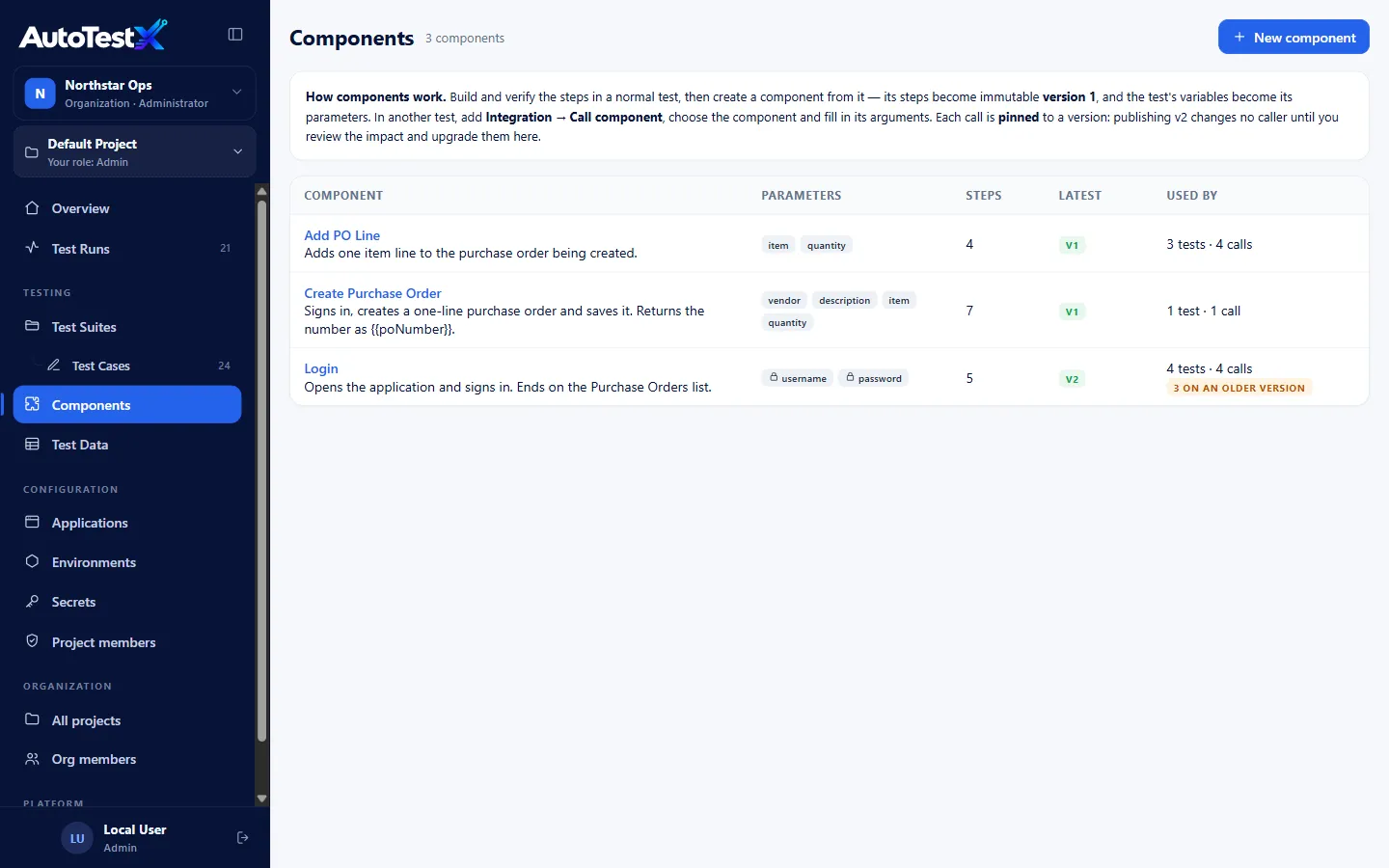
How components work
Section titled “How components work”- Build and verify the steps in a normal test, e.g. Login (component source).
- Create a component from that test. Its saved steps become the immutable version 1. Its test variables become the component’s parameters.
- In other tests, add Integration → Call component, choose the component, and fill in its arguments.
- Each call is pinned to a version. Publishing v2 changes no caller until you review the impact and upgrade them.
Creating a component
Section titled “Creating a component”You need the Create, publish and upgrade reusable components permission (Test Developer and above).
-
Write a test that does exactly the reusable part, e.g. opens the application and signs in. Use test variables for anything a caller should supply:
{ "username": "tester", "password": "" }and refer to them in steps:
{{username}},{{password}}. -
Run it and make sure it passes.
-
Go to Components → New component:
Field Notes Source test The test whose saved steps become version 1. Later edits to the test change nothing until you publish again. Name e.g. Login Description What it does and where it ends, e.g. “Ends on the Purchase Orders list.” Parameters Pre-filled from the test variables. For each: name, default, required (callers must pass a value), secret (masked in reports). Add parameter adds one. -
Choose Create component.
What a component’s steps can see:
| Visible inside the component? | |
|---|---|
Its parameters, as {{name}} |
Yes. A parameter always wins over a same-named variable. |
The caller’s loop variables ({{line.item}}) |
No. Pass them as arguments. This keeps a component’s behaviour the same wherever it is called. |
| Environment variables and secrets | Yes ({{baseUrl}}, {{secret.X}}) |
| Runtime variables | Yes, both ways. A variable set inside the component (e.g. an Extract into poNumber) is available to the caller’s later steps. This is how a component returns a value. |
Calling a component
Section titled “Calling a component”- In a test, add Call component (Integration).
- In Step properties choose the component and the version. The latest is preselected; the call stays pinned to whatever you choose.
- Fill in each argument. Arguments are templates evaluated in the calling test, so
you can pass
{{secret.APP_PASSWORD}},{{data.vendor}}or a loop variable{{line.item}}. - Save.
In the run report, a component call shows its version and arguments (secret ones as
••••), followed by the component’s own steps.
Components can call other components. For example, Create Purchase Order calls Login and Add PO Line.
The component page
Section titled “The component page”Choose a component to see:
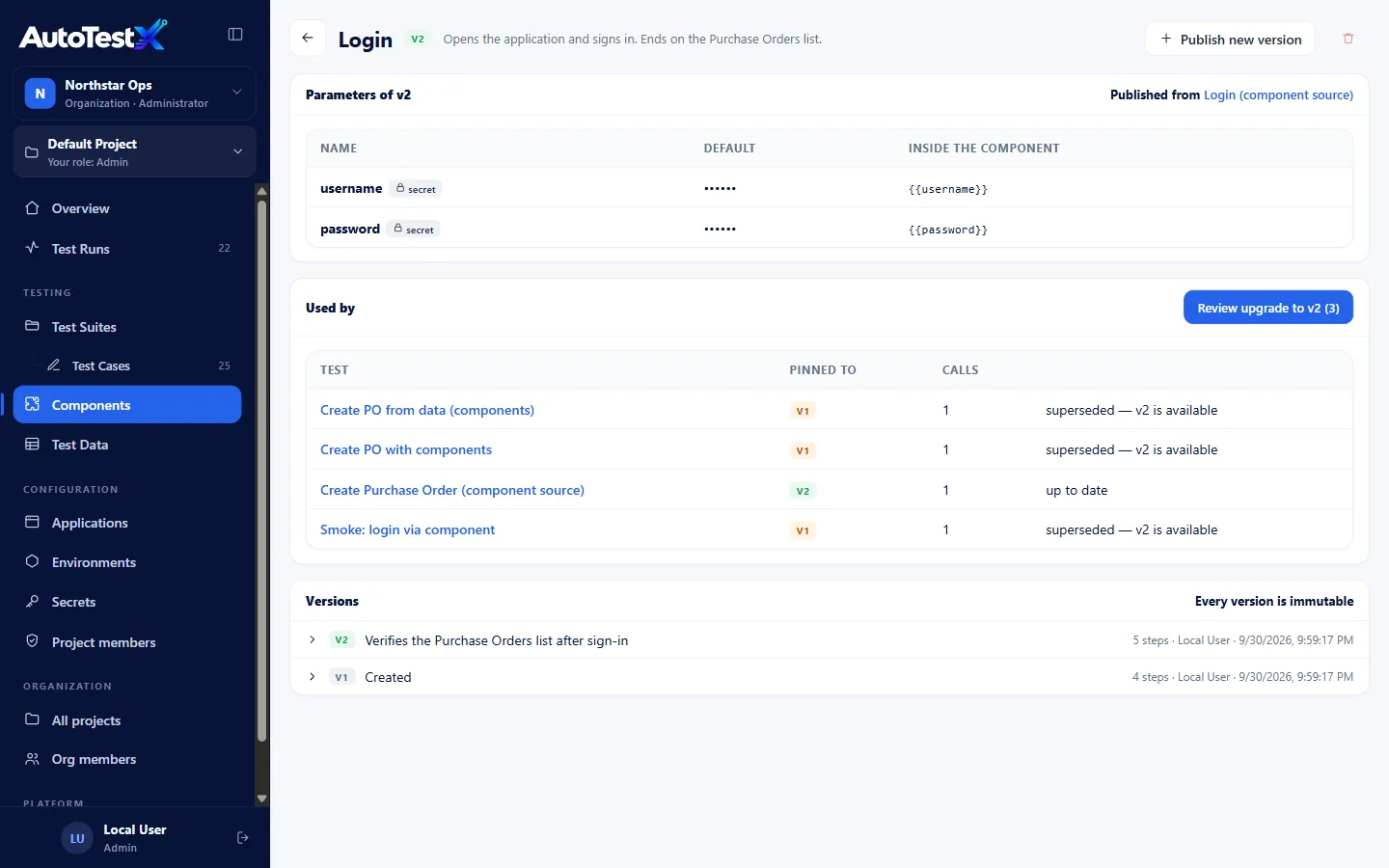
- Parameters of vN: name, default (secret defaults masked), and how each is used inside, plus a link to the source test.
- Used by: every test that calls it, its pinned version, number of calls, and whether it is up to date or superseded — vN is available. Private tests of other members are counted but not named.
- Versions: every published version with its change note, step count, author and date. Versions are immutable.
Publishing a new version
Section titled “Publishing a new version”- Change the source test (or another test) and save it.
- On the component page choose Publish new version.
- Choose From test (its current saved steps become the new version) and describe What changed.
- Publish vN.
Callers stay on their pinned versions. The component list shows how many callers are on an older version.
Upgrading callers
Section titled “Upgrading callers”- On the component page choose Review upgrade to vN.
- For each calling test, AutoTestX shows its current version(s), the number of calls, and what changes, e.g. a parameter that was added or removed.
- Tick the tests to upgrade. A test that cannot be upgraded says why (for example, the new version needs a parameter the call does not pass).
- Choose Upgrade n tests.
Each upgraded test gets a new version noting the move, so it can be restored if needed. You can upgrade some callers and leave others on the old version.
Good practice
Section titled “Good practice”- Make a component end in a known state and say so in its description.
- Add a check at the end (e.g. Purchase Orders list is visible). A component that “passes” on the wrong screen spreads failures into every caller.
- Mark credentials and personal data parameters secret.
- Keep the source test; it is where you develop and verify the next version.
The seeded examples (scripts/seed-components.mts, scripts/seed-composite-component.mts)
build Login, Add PO Line and Create Purchase Order, publish Login v2, and upgrade one
caller. They are a working reference.