

Test suites
A suite is a functional area of the application, such as Purchasing, Asset or Work Management. Each test belongs to at most one suite. Suites are used to:
- filter the test list,
- group statistics on the dashboard (Tests by module),
- organize a large regression set that covers a big packaged application.
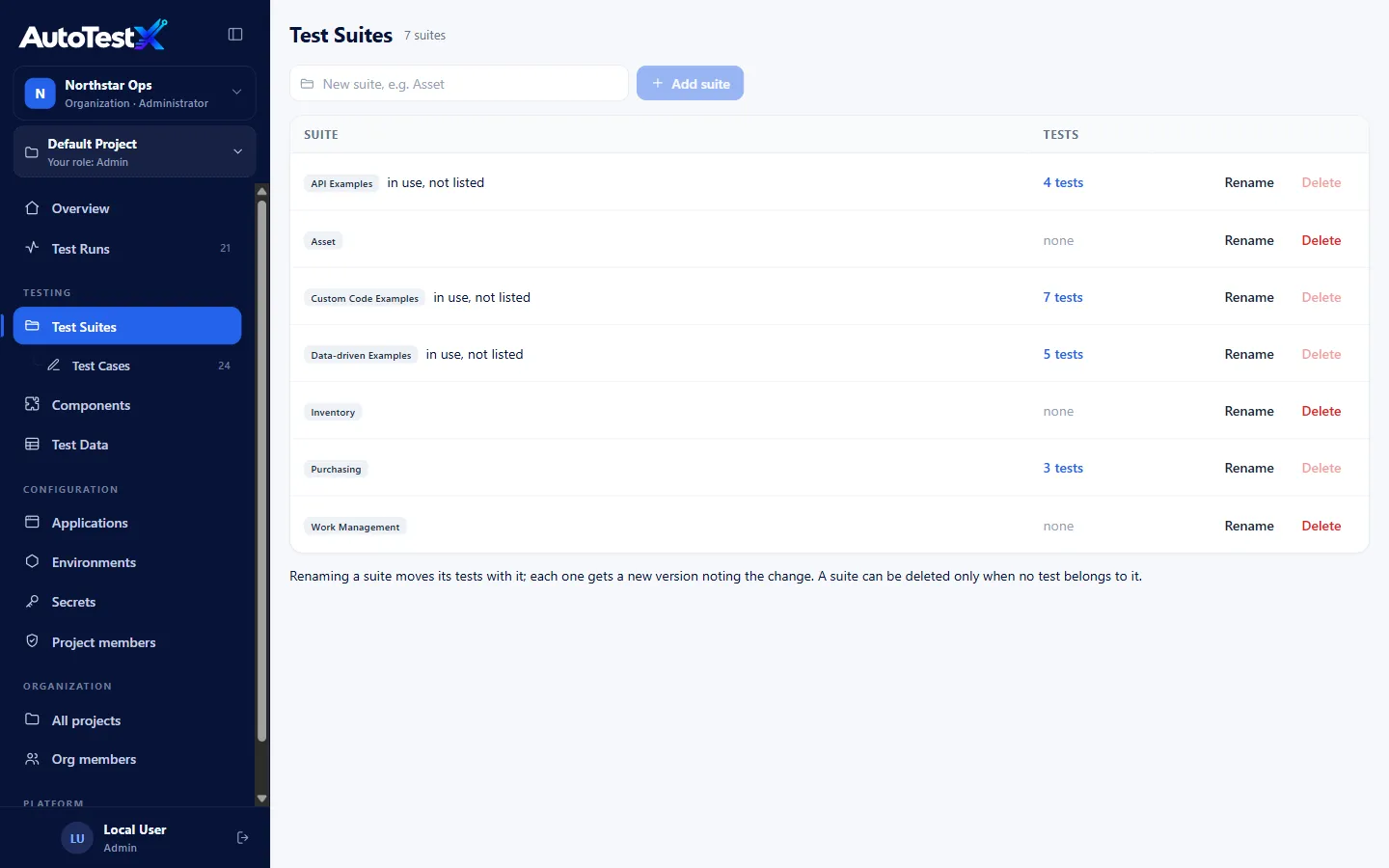
Managing suites
Section titled “Managing suites”Test Suites in the sidebar lists the project’s suites and how many tests each holds. You need the Manage test suites permission (Test Developer and above).
| Action | How | Notes |
|---|---|---|
| Add | Type a name in New suite, e.g. Asset, then Add suite | |
| Rename | Rename on the row | Moves every test in it to the new name. Each test gets a new version noting the change. |
| Delete | Delete on the row | Only possible when no test belongs to the suite |
A suite marked in use, not listed is named by tests but missing from the project’s suite list, for example after an import. Add it to the list to manage it here.
Putting a test in a suite
Section titled “Putting a test in a suite”Choose the suite when you create the test, or later in the editor under Test settings → Suite. Choose Unsorted for none.
Running a suite
Section titled “Running a suite”A suite run runs every shared test in the suite against one environment and gives one answer: did the suite pass? Each test still gets its own run report.
- Above the table, choose Run suites against: an environment, or No environment.
- Click Run on the suite’s row. You need the Run tests permission (Tester and above).
A panel follows the run live. It shows each test as it queues, runs and finishes, how many are done, and how many tests your plan runs at once (up to 2 at a time). Click a finished test’s name to open its report. If you leave the page and come back, the panel picks up a suite run that is still going.
- Result. If any test failed, the suite fails. If a test could not run (an error), the suite is an error. Otherwise it passes. Skipped tests (Deprecated ones) do not count.
- Stop. Tests not yet started are cancelled at once. Tests already running finish, so their reports stay complete. The suite then ends as Cancelled.
- Evidence. A suite run saves screenshots where they matter (failures, Screenshot steps), not after every step as a run from the editor does.
Recent suite runs
Section titled “Recent suite runs”Below the suites, Recent suite runs lists the project’s suite runs, newest first, with their result, environment and duration. Click a row to open it in the panel. Runs started by a schedule are marked scheduled, runs started from a deploy pipeline are marked deploy (with the commit and branch on the run), runs an AI assistant started are marked AI assistant, and other runs started with an API token are marked CI. With more than one suite, a picker in the card header shows one suite at a time.
Schedules
Section titled “Schedules”A schedule runs a suite on its own, every day at a set time or by a cron expression, in a time zone you choose. You need the Create, change, pause and delete scheduled runs permission (Admin and Test Manager). Everyone in the project can see schedules.
New schedule opens the form: suite, environment, Runs (Every day or Custom (cron)), the time and the time zone. While you type, the preview shows the description and First run in …, with the dates of the following runs in your own time. Check the countdown before saving: in a 12-hour time box, 12:44 AM and 12:44 PM are easy to mix up.
- Ready tests only. A scheduled run includes only tests marked Ready. Drafts are listed as skipped, with the reason, so a test someone is still editing never fails the nightly run. A suite with no Ready tests ends as an error: No Ready tests in this suite. Runs from the Run button and from the CLI include Drafts.
- Each row shows when it runs, who gets alerts, the environment, the next run with a countdown, and the last run. Click the last run’s status to open it.
- Run now starts the schedule’s run straight away. While its previous run is still going, it is refused: The last run of this schedule is still going. The scheduler skips a due run for the same reason.
- Pause keeps the schedule but stops it running. Resume starts it again. Resuming is checked against your plan like creating a schedule.
- What a schedule protects. An environment a schedule uses cannot be deleted, and renaming a suite moves its schedules with it.
What your plan allows:
| Plan | Timing | Schedules per suite | Shortest gap |
|---|---|---|---|
| Proof of value | Every day | 1 | - |
| Team | Every day | 1 | - |
| Business | Every day or cron | No limit | 15 minutes |
| Enterprise | Every day or cron | No limit | 5 minutes |
The server checks for due schedules every 30 seconds. If the server was down at the time a schedule was due, it catches up with one run when it starts again, if it is less than two hours late. Otherwise the run is recorded as missed.
Failure emails
Section titled “Failure emails”Each schedule has an Email on failure list of project members. A new schedule starts with whoever creates it. Mail goes out when the schedule changes state:
- it starts failing: Asset is failing on Staging (Project), with the failed tests, why each one failed, and links to the reports;
- it passes again: Asset is passing again on Staging, with how long it had been failing.
A suite that keeps failing sends one email, not one per run. A run that could not start at all (for example, no Ready tests) counts as failing. Cancelled, skipped and missed runs change nothing. People who have left the project are not emailed. An empty list means no emails.
Emails are sent through the server’s mail settings (Configuration → Email). Without them, the server prints each email in its console.
To run a suite every time you deploy, see Run after deployment. Who is emailed when such a run fails is set in the Notifications card on this page: see Notifications.