

Running tests and reading reports
Starting a run
Section titled “Starting a run”Tests are run from the editor:
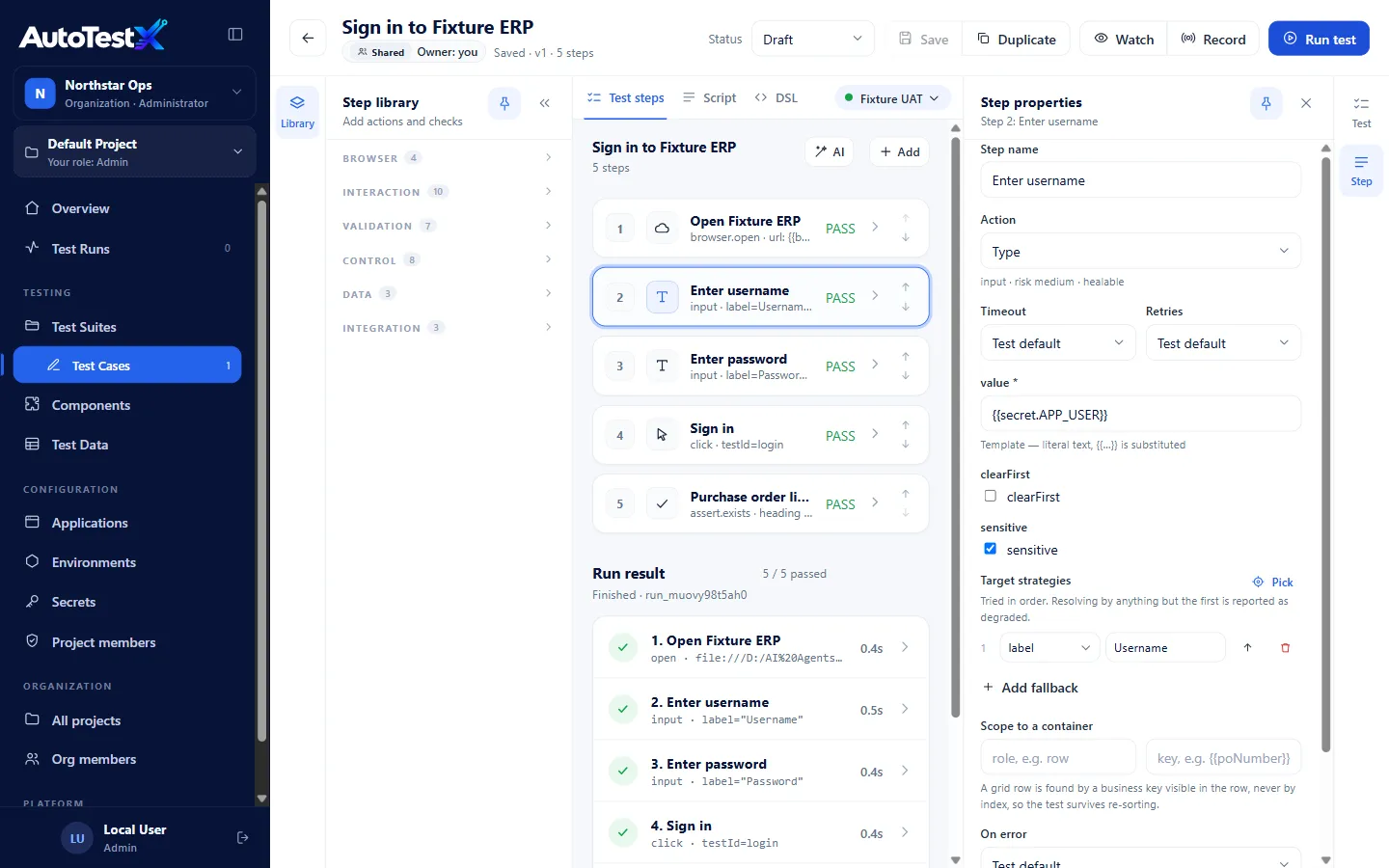
- Choose the environment in the selector above the steps.
- Optionally turn on Watch.
- Choose Run test.
You need a role with the Run tests permission (everyone except Viewer). Deprecated tests cannot be run.
Runs can also be started from the command line (atx run) or
the REST API (POST /api/runs).
Run executes the saved version
Section titled “Run executes the saved version”A run always executes the saved test. With unsaved edits you are asked to choose Run saved version or Save and run.
Watch: see the browser
Section titled “Watch: see the browser”By default, tests run headless (no visible window). Watch opens the browser so you can see it drive the application. In a hosted setup the window opens on your computer through the AutoTestX Agent. If the agent isn’t running, AutoTestX helps you set it up before the run starts.
Data-driven runs with Watch on run their rows one at a time.
Live results
Section titled “Live results”While a run is in progress:
- each step in the editor shows PASS, FAIL, WARN or SKIP as it finishes,
- the Run result panel under the steps lists each step with what it actually did (address opened, locator matched, value typed) and how long it took,
- RESULT shows steps passed out of the total.
Test Runs
Section titled “Test Runs”Test Runs in the sidebar lists every run in the project, newest first.
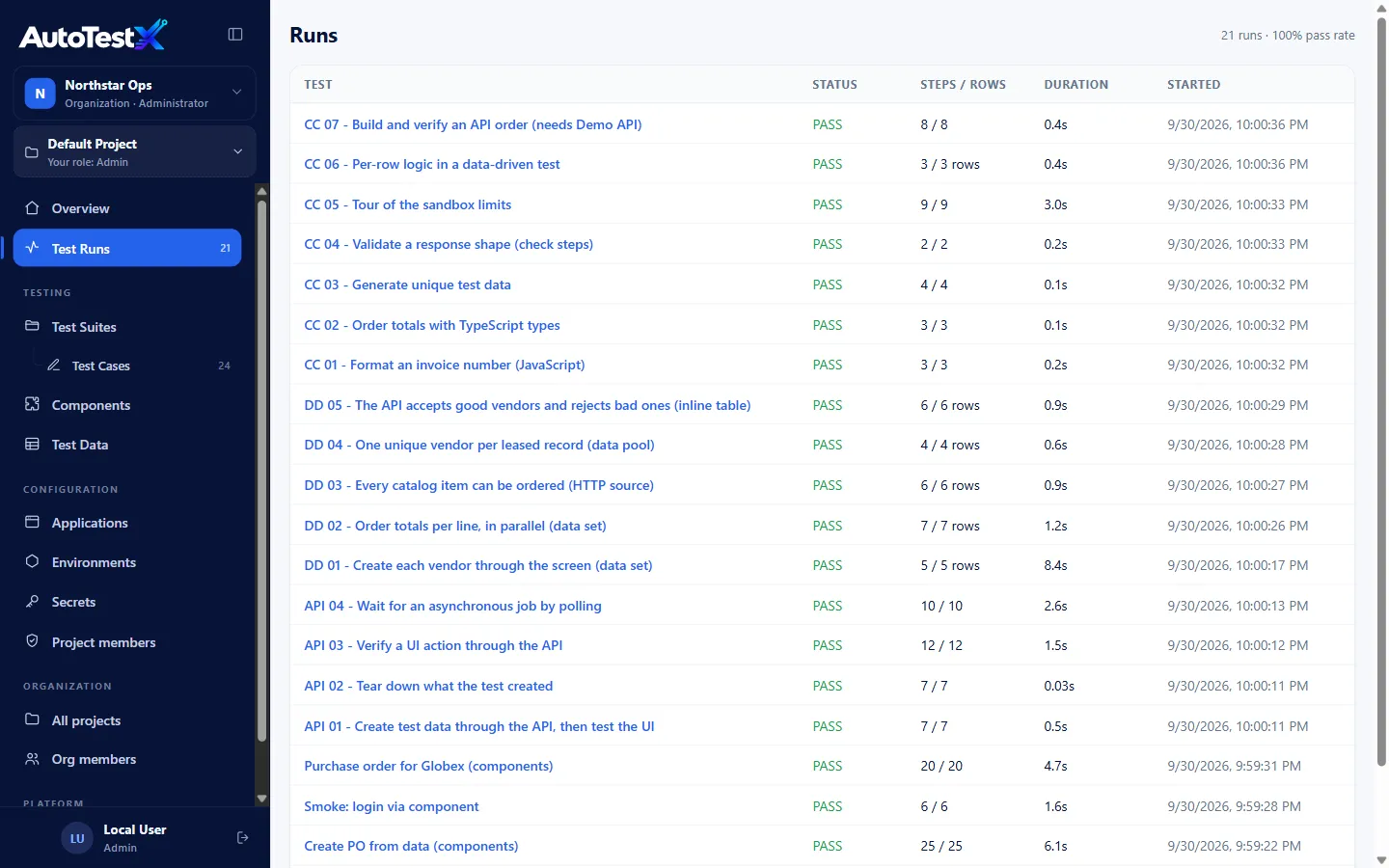
| Column | Meaning |
|---|---|
| Test | The test that ran |
| Status | PASS, FAIL or ERROR |
| Steps / rows | Steps passed / total, or rows passed / total for a data-driven run |
| Duration | Wall-clock time |
| Started | When it started |
The heading shows the number of runs and the overall pass rate. Choose a run to open its report. Runs of a private test are visible only to the test’s owner.
The run report
Section titled “The run report”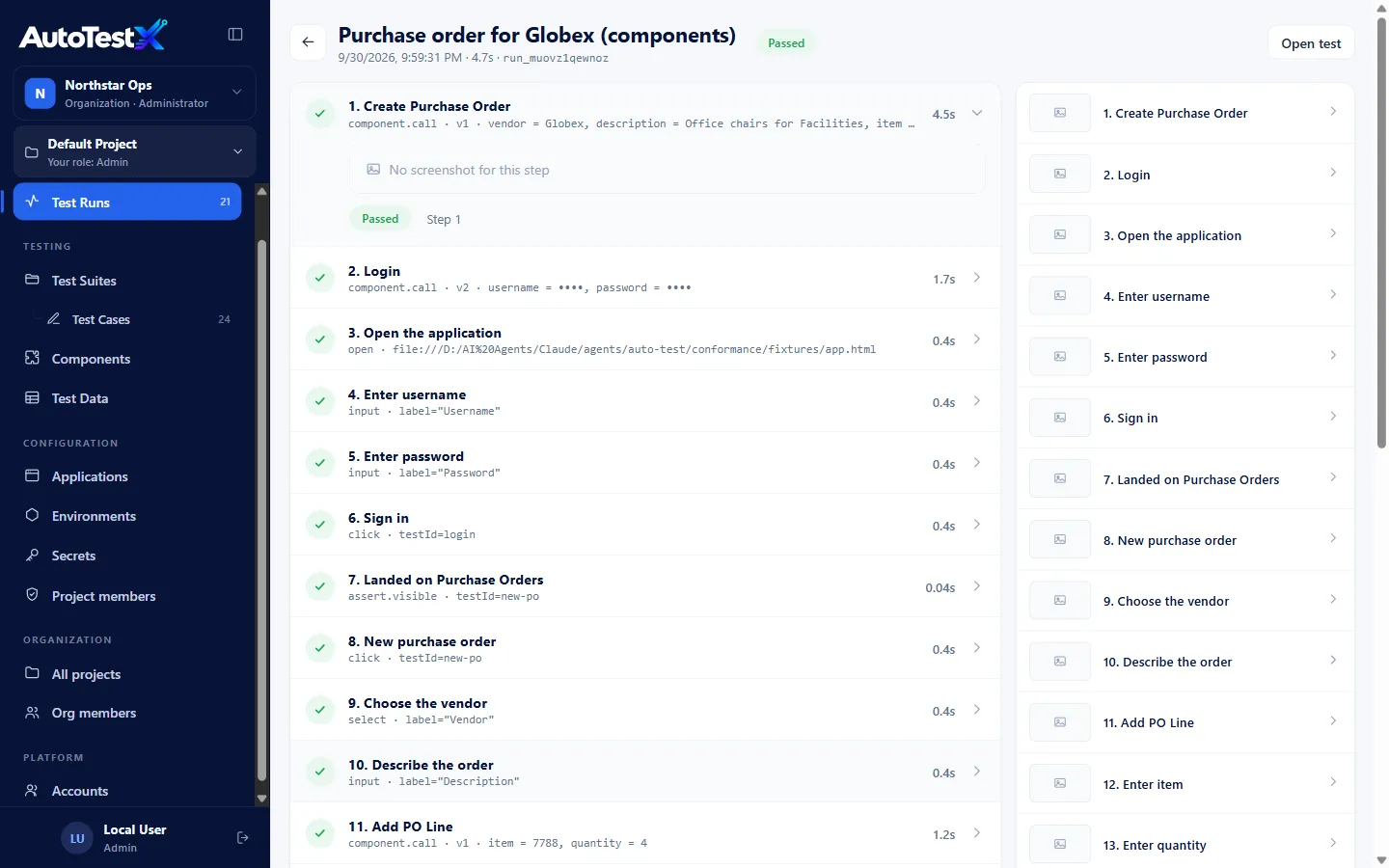
Header
Section titled “Header”The test name, status (Passed, Failed, Error), start time, duration, run id, and Open test.
When self-healing fixed something because of this run, a Led to line under the header links the versions the fixes were written into: the test’s new version, a component’s new version, and the component’s source test.
Each step is a card, numbered in execution order. Steps inside loops and components are numbered too. A card shows:
- the status icon: ✓ passed, ✕ failed,
!warned,–not run, - the step name, the action, and the detail as executed: the real URL (not
{{baseUrl}}), the locator that matched, the values used (secrets as••••), - the duration.
Expand a card to see:
- the screenshot taken after the step (or at the moment of failure),
- Primary locator or Fallback locator: which strategy found the element,
- for a failed assertion, expected and actual side by side,
- the error message.
Component calls show the component’s name, its pinned version and the arguments, with the component’s own steps listed after it.
Jump list and screenshots
Section titled “Jump list and screenshots”The right-hand column lists every step with a thumbnail. Choose one to jump to it. Choose a screenshot to open the viewer. Use ← / → to step through every screenshot in order, and Esc to close.
Run summary
Section titled “Run summary”Counts of Passed and Failed steps and Evidence images, plus the final value of
every Variable the run produced (e.g. poNumber = "PO-102938"). Secret values never
appear here.
Console log and Network log link to everything the application logged during the run, one JSON object per line. The number next to each is how many problems it holds: console errors, uncaught exceptions, failed requests and 4xx/5xx responses. N not kept means the log reached its size limit (512 KB each) and some entries were left out.
The network log holds the method, URL, status and timing of each page, XHR and fetch request, and of any request that failed. It never holds request or response bodies or headers. Secret values are masked in both logs, as everywhere else.
Recording: video and trace
Section titled “Recording: video and trace”A failed run has a Recording card above the run summary:
- The video plays the whole run, so you can see how the page reached the failure: a spinner that never cleared, a dialog that closed, a redirect.
- Download trace saves a Playwright trace. Open it at trace.playwright.dev (it opens the file in your browser and uploads nothing) to step through every action with the page as it was before and after, plus its console and network.
| The run | Video | Trace |
|---|---|---|
| Failed | Kept | Kept |
| Passed, but a step needed a retry | - | Kept: a flaky pass is worth stepping through |
| Passed first time | - | - |
Runs you Watch keep a trace but no video: you saw them happen. Recordings are deleted after 14 days; the rest of the report stays. Your administrator can change all of this (configuration).
Secrets. Secret values are masked inside the trace. A video cannot be masked, so when a step types a sensitive value into a field that shows what is typed (anything but a password field), the run keeps no video or trace, and the card says which step caused it.
When screenshots are taken
Section titled “When screenshots are taken”| How the run started | Screenshots |
|---|---|
From the editor, or POST /api/runs |
After every step, plus on failure. The API accepts "screenshots": false to turn this off. |
CLI (atx run) |
On failure and for Screenshot steps. Add --screenshots for every step. |
Screenshot steps always capture, whatever the setting.
Inside a loop, each iteration keeps its own screenshot, so the report shows the right screen for every iteration.
Reading a failure
Section titled “Reading a failure”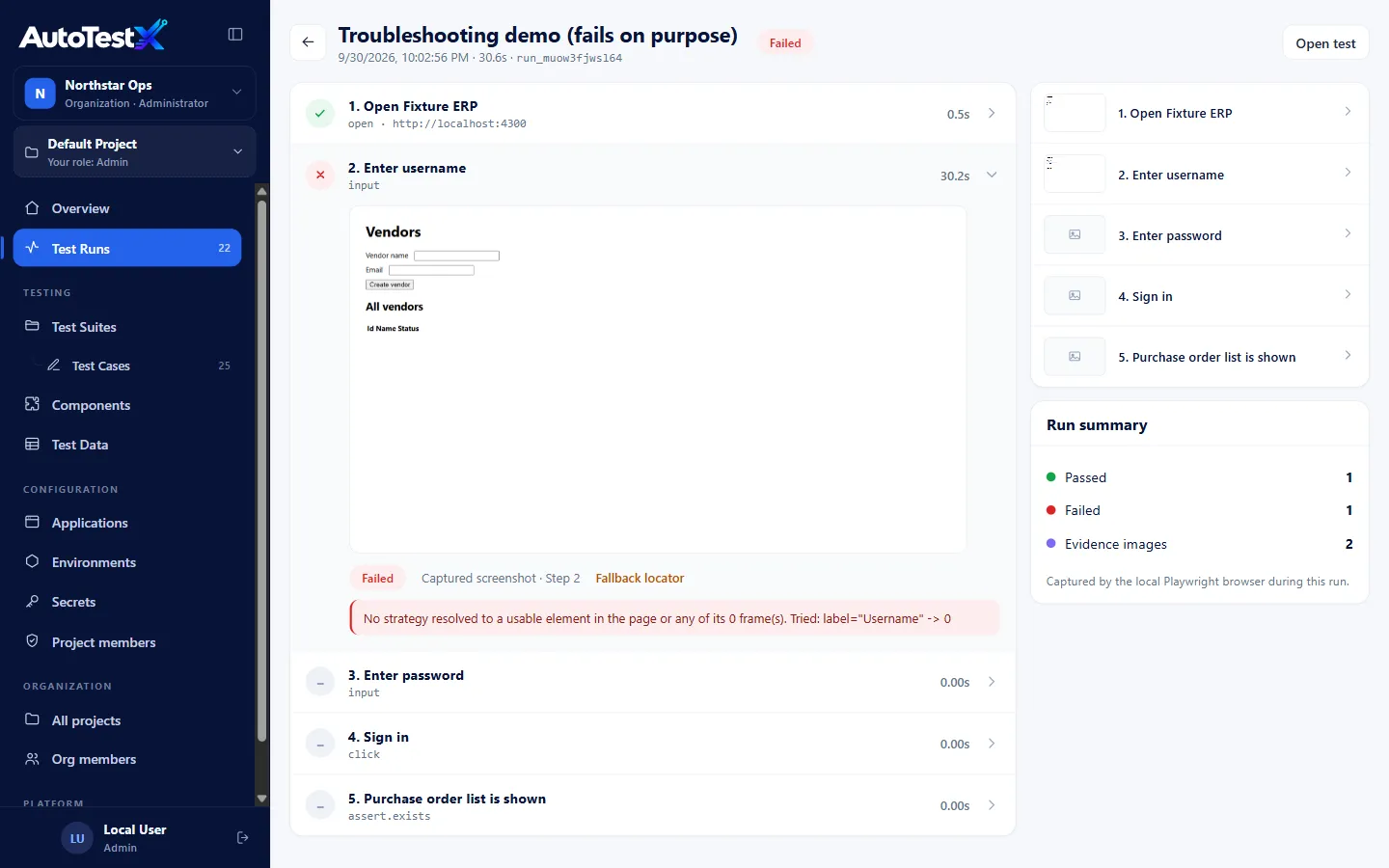
-
Find the first ✕ step. Steps after it show
–(not run) when the test aborted. -
Expand it and read the error. Common errors:
Error says Meaning No strategy resolved to a usable element… Tried: label=“Username” -> 0 No locator found the element. -> 0means 0 matches. Compare the screenshot with what the step expected. Often the wrong page, wrong environment, or a changed screen.expected … actual … An assertion compared values and they differed Unresolved reference “x” A {{x}}with no value: a typo, or the step that sets it did not runTimeout … exceeded The element or page did not get ready within the step’s timeout Cannot compare string with number An expression mixed types. Convert with NUMBER(). -
Look at the screenshot of the step before. It shows the screen the failing step started from.
-
Read What the application reported around this step, under the error. It lists the problems logged while the step ran or in the 10 seconds before it, with the time relative to the step’s start (
−0.5smeans half a second before it):You see It points at 500,502,503…The application’s server. Not the test. Crash (an uncaught exception) The application, in the browser. What the step expected may never have been drawn. 401or403The session or the test user: expired login, missing permission. 404on an API callAn API that is not deployed on this environment, or the wrong environment URL. Failed (no response at all) The environment or the network: host down, DNS, VPN, proxy. Nothing listed The application reported no problem: look at the test (locator, data, timing). The same evidence is part of the failure context that AI assistants read through MCP, with these conclusions written out as hints.
More in Troubleshooting.
Failure class
Section titled “Failure class”Every failed run gets one failure class when it finishes. Fixed rules decide it, not AI, so the same evidence always gets the same class, with AI on or off.
| Class | Given when | Points at |
|---|---|---|
| Maximo business rule | A Maximo BMXAA…E (or …W) message: in the step’s error, in a failed API call’s response, or in the message dialog on the page |
The application refused the action. The code says why (BMXAA4129E: the record already exists). |
| Server error | A 5xx from an API step, or from the application’s own calls around the step; an uncaught exception |
The application or its back end |
| Authentication / permission | 401 / 403, or an error about an expired session or a missing permission |
The test user or the environment’s credentials |
| Test data | The data set, data source or data pool could not give the run its rows (no available records) | The test data |
| Environment | A host could not be reached (DNS, connection refused); a run that never started | The environment, network or VPN |
| Timeout | The step ran out of time | A slow environment, or a wait for something that never came |
| Locator | The step’s element was not found, or a self-heal came before the failure | The page changed, or the test went somewhere else |
| Wrong value | An assertion compared values and they differed | The application or its data |
| Unclassified | No rule matched | Read the report |
Each class comes with a confidence. Several pieces of evidence that agree raise it.
A test that passed last time and fails now raises it for the classes that point away from
the test. A flaky test lowers it. When two classes score close, the runner-up is listed
under Also possible. The class also names the request behind the failure, when
there is one (POST host/maximo/oslc/os/mxwo). For a locator failure that came after a
self-heal, it names the heal’s tier: 0 is a fallback locator, 1 is a fingerprint match.
A Maximo message is read from the API response body and from the page only as the code and its one sentence. The rest of a response body is never kept.
AI suggestion (Unclassified failures only)
Section titled “AI suggestion (Unclassified failures only)”When no rule matches, a project can have AI read the failure’s evidence and suggest what went wrong. The suggestion appears under the grey Unclassified chip, labelled AI suggestion, with its confidence (low, medium or high) and the nearest category. That category can be one the rules don’t have, such as Test authoring for a variable nothing sets. Open the failure to see the evidence it quotes and up to three things to check.
A suggestion never changes the class. The failure still counts as Unclassified in Likely causes, in the release report and in anything a pipeline checks. When more than half of an Unclassified group shares one suggestion, the group shows it after its count.
Turning it on. Automatic diagnosis is off until a project’s Admin or Test Manager turns it on. On Test Suites, the AI diagnosis of unclassified failures card, Change: tick the box and, if you want, set the most new diagnoses a day (default 20, at most 100). An organization administrator can turn it off for every project from the organization’s page. A project’s own setting is kept for when it is allowed again.
Diagnose with AI. When automatic diagnosis is off, or a diagnosis was skipped, an Unclassified failure shows a Diagnose with AI button to anyone who can write steps with AI. It works whether or not the project turned automatic diagnosis on, and it is charged to the person who clicks it. It is still refused while the organization has it off.
What it costs. Each new diagnosis uses one generation from the organization’s monthly AI allowance. Failures that look the same (the same step failing the same way) share one answer for 7 days, so twelve identical failures cost one. Automatic diagnoses are charged to the project itself, whoever started the run, and count toward its daily limit. On the Organization → Settings page they appear as AI diagnosis (project name). Only Diagnose with AI is charged to a person: the one who clicks it.
What is sent. The failed step, its error, the requests around it (without query strings), Maximo codes and their sentence, the steps just before it, heals, the failing data row (already redacted) and the test’s recent history. Full logs, response bodies, screenshots, recordings and secret values are never sent. Every quote in the answer must appear in what was sent, or the answer is dropped and not charged.
When there is no suggestion, the line under the failure says why: off for this project, the daily limit is reached, the allowance is used up, the AI service is not connected, or the answer could not point at its evidence.
Helpful / Wrong. Anyone who runs tests can rate a suggestion with Helpful or
Wrong. Each person has one vote; click the other button to change it, or the same one
again to take it back. A suggestion shared by several failures is one answer, so a vote on
any of them counts for all. Wrong also stops that answer being reused: the next failure
that looks the same is diagnosed again. When more people said Wrong than Helpful, the
suggestion stays visible but is muted and marked. It no longer names its group’s cause in
Likely causes, and the failure email and atx run --suite leave it out.
Unclassified causes. Each suggestion also proposes a rule that would have caught the failure. On Test Suites, an Admin or Test Manager can open Unclassified causes from the AI diagnosis card to see the last 7, 30 or 90 days. It shows:
- how many failures were Unclassified, how many got a suggestion, and why the rest didn’t;
- how often people rated the suggestions Helpful;
- the suggested rules, most failures first, each with its category, the tests it came from, an example cause, when it last happened and its votes.
Rules worded the same, apart from case, punctuation and spacing, are counted as one. A suggestion people marked wrong, or one that named no rule, is counted in the summary but not listed. A rule that keeps coming back across tests, with people agreeing, is the one to add to the failure classification rules. Once it is added, those failures get a class and no longer need the AI.
Failure investigation (suite runs)
Section titled “Failure investigation (suite runs)”A finished suite run with failures shows Likely causes above its tests: the failures grouped by class and request, largest first. Five tests failing with Server error on one endpoint are most likely one problem, not five. Under each failed test is its class, confidence and request. Click it to see the analysis (the rules that matched, then the hints) and links to the screenshot, video, trace and logs.
The same report is:
- in the failure email, as Likely causes and one class line per test, with the AI suggestion under an Unclassified one (the email waits up to 20 seconds for suggestions still being made);
- printed by
atx run --suiteafter the result, and written into--json; - the MCP tool
investigate_failures, for AI assistants; GET /api/executions/:id/investigation(see the REST API).
To practise with every class on a demo application that fails on purpose, see the failure classification exercises, then the AI diagnosis exercises for the failures no rule matches.
Release evidence report
Section titled “Release evidence report”Answers “can we release v2.14.0?” from the suite runs labelled with that release (a
pipeline’s --release / deployment.release, or what was
deployed to the environment when the run started).
Open it in Test Suites: in Recent suite runs, choose the release in the release filter. The report appears above the list:
| Part | What it says |
|---|---|
| Recommendation | Go, Go with risks, No-go or Not enough evidence, with one sentence on why. Copy as text copies the whole report for a release ticket or a chat. |
| Blockers | What holds the release. Only with No-go. |
| Risks to accept | What a person should accept, knowingly, before releasing. |
| Totals | Suites passed, tests passed, failed, error and skipped, and the release it was compared with. |
| Likely causes | Every failure of the release by class and request. |
| Suites | The run that counts for each suite and environment: the latest. latest of 3 runs means it was re-run; passed on run 2 means an earlier run failed. Click a row to open the run. |
| Failing tests | Each failing test, marked Regression (passed in the release before), New (no result there) or Known (failed there too), with its class. |
The release before is, for each suite and environment, the latest finished run of another release that started before this release’s first run there. It goes by time, not by version number.
How the recommendation is decided
Section titled “How the recommendation is decided”Fixed rules, no AI: the same runs always give the same recommendation.
| Decision | When |
|---|---|
| Not enough evidence | No suite run is labelled with the release. |
| No-go | A failing test whose class says the application is wrong (Server error, Maximo business rule, Authentication / permission, Wrong value) and that did not fail in the release before. Also a test that passed in the release before and now fails with no class at all. |
| Go with risks | No blocker, but at least one of: a known failure; a failure where the test could not check the application (Locator, Test data, Environment, Timeout, Unclassified); a suite that failed and then passed on a re-run; a suite with Ready tests that did not run for the release; skipped tests; a stopped suite run; runs still in progress. |
| Go | Every suite that counts passed, every suite with Ready tests ran, nothing skipped. |
A recommendation is advice. The person releasing decides; the report gives them the reasons to do it knowingly.
The same report is the MCP tool release_report and
GET /api/releases/:release/report (see the REST API).
Warnings and drift
Section titled “Warnings and drift”A step that passed using a fallback locator shows ! (warned) and Fallback
locator. The run still passes, but the dashboard lists the test as drifting. Update the
target (use Pick) before the fallback stops working too.
Data-driven run reports
Section titled “Data-driven run reports”A test with a data source runs once per row and produces one run with a result per row.
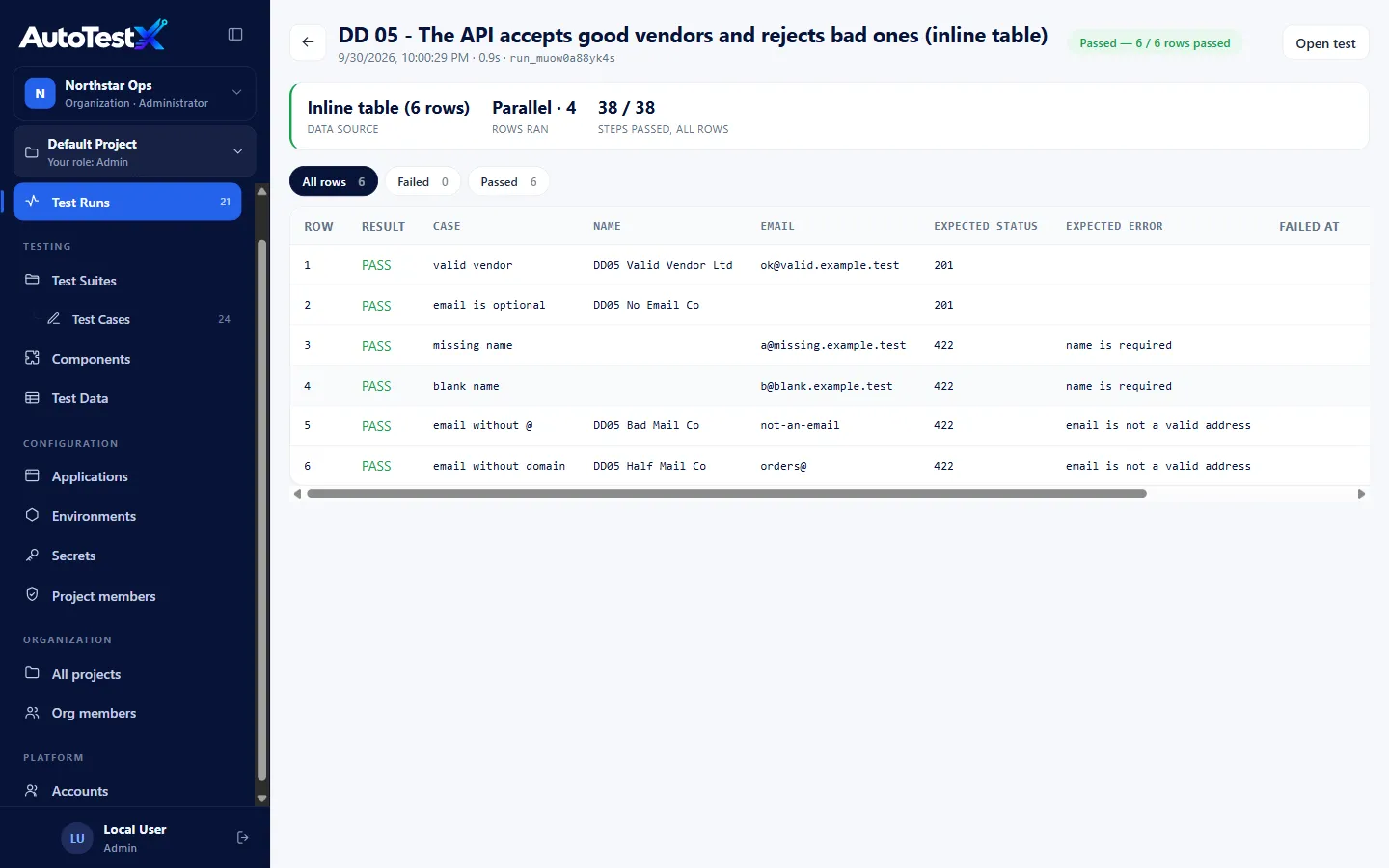
- The summary shows the data source, whether rows ran Parallel · n or Sequential, and steps passed across all rows.
- Filter the table with All rows, Failed, Passed.
- Each row shows its result, its input values (sensitive columns masked), the step it failed at, steps passed and duration.
- Choose a row to see its full step-by-step results and screenshots.
The run’s status:
| Rows | Run status |
|---|---|
| all passed | Passed |
| any failed | Failed |
| some errored, none failed | Error |
| no rows at all | Error (an empty data source is never green) |
Taking results out of AutoTestX
Section titled “Taking results out of AutoTestX”A run, a suite run and the release report can be exported for other tools. Anyone who can open them can export them; a private test’s runs only by their owner.
| You want | Use |
|---|---|
| AutoTestX tests in your pipeline’s test tab (GitHub, GitLab, Azure DevOps, Jenkins) | atx run --suite Smoke --junit smoke.xml, then the CI system’s test report step. See Run after deployment. |
| A local run as JUnit | atx run test.json --junit results.xml |
| A run, suite run or release report to read, sign off or attach to a ticket | Download PDF at the top of the run report, the suite run panel, or the release report. The PDF has every step with its screenshot, expected and actual, and the run’s variables. |
| A run, suite run or release report as JSON for another system | The export.json routes of the REST API |
What each file holds and how statuses map: Report exports.