

Test cases
Test Cases lists every test in the project that you can see.
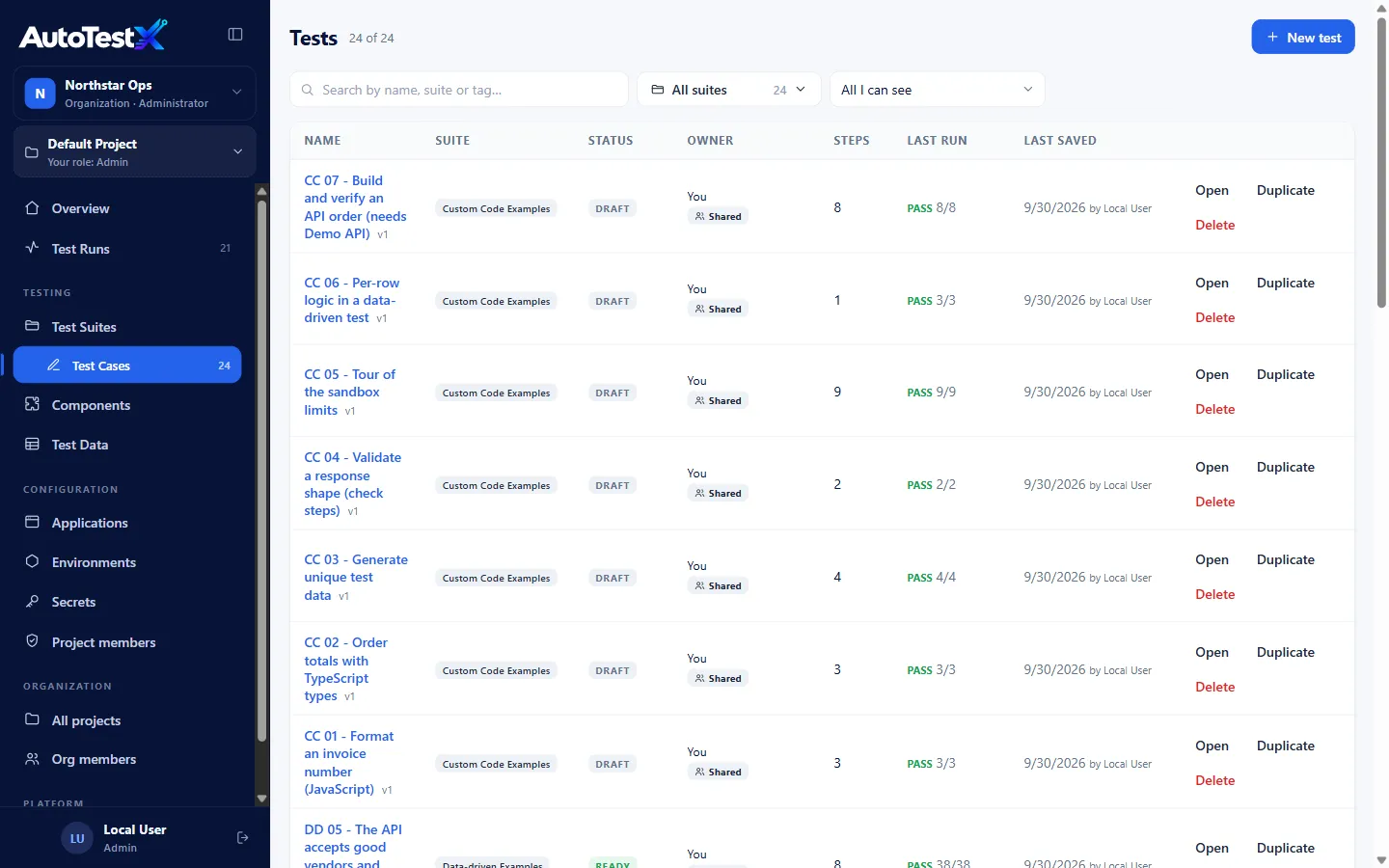
The list
Section titled “The list”| Column | Meaning |
|---|---|
| Name | The test name and its current version (e.g. v3) |
| Suite | The suite it belongs to, or — |
| Status | DRAFT, READY or DEPRECATED (see Lifecycle) |
| Owner | Who owns it, and whether it is Shared or Private |
| Steps | Number of steps |
| Last run | Result and steps passed of the latest run, or never |
| Last saved | Date and author of the latest version |
Actions on each row: Open, Duplicate (copies the test into a new Draft that you own) and Delete.
Finding tests
Section titled “Finding tests”- Search matches the name, suite or tag.
- All suites filters by suite. Unsorted shows tests with no suite.
- The visibility filter offers All I can see, Shared with the project, My private tests and Owned by me.
Creating a test
Section titled “Creating a test”Choose New test and fill in:
| Field | Notes |
|---|---|
| Name | Required. Describe the business flow, e.g. Create Purchase Order. |
| Suite | Optional. Groups the test in the list and on the dashboard. |
| Who can see it | Shared: every member of the project. Private: only you, until you share it. |
Create opens the test editor. The new test is saved immediately as version 1, a Draft with no steps.
Shared and private tests
Section titled “Shared and private tests”A private test is your personal draft. Nobody else sees it or its runs, whatever their role, administrators included. A shared test belongs to the project, and every member can see it.
To change visibility or ownership, open the test and choose the Shared / Owner chip under its name.
- Only the owner can change who sees a test.
- Test Managers and Admins can transfer ownership of shared tests, for example when someone leaves the project.
- Handing a private test to someone else makes it visible only to them, so you will no longer see it.
Changing visibility or owner does not create a new version.
Lifecycle: Draft, Ready, Deprecated
Section titled “Lifecycle: Draft, Ready, Deprecated”| Status | Can edit? | Can run? | Can delete? | Meaning |
|---|---|---|---|---|
| Draft | Yes | Yes | Yes | Being written or changed |
| Ready | No, locked | Yes | Yes | Reviewed and fit for regression runs |
| Deprecated | No | No | No | Kept for its history; no longer runs |
- Set the status with the Status dropdown in the editor, then Save. Only Test Managers and Admins may mark a test Ready or Deprecated.
- A Ready version is frozen so its runs stay repeatable. To change it, choose New revision. The next version starts as a Draft copy that you edit and save.
- A Ready test can only move on to Deprecated, never back to Draft.
- Steps from Write with AI must first be saved in a Draft. The save that adds them cannot also mark the test Ready.
- A Deprecated test is read-only and cannot be run, revised or deleted. Duplicate it to work from a copy.
Versions
Section titled “Versions”A test’s history is a list of numbered versions (v1, v2, …), each with an author
and a time. A version is a revision of the test:
- While a version is a Draft, Save updates that same version. Saving ten times
while you work leaves you on
v1. - Marking it Ready freezes it.
- New revision starts the next version (
v2) as a Draft copy.
Some other actions also add a version, with a note saying why: restoring an old version, renaming the test’s suite, and upgrading the components it calls.
Runs record which version they executed.
Each version also records who made it (a person, an API token or a self-healing rule), why (created, imported, edited, marked Ready, restored, fixed by self-healing…) and, for a self-healing fix, which run found it. A Draft keeps everyone who saved it, in order: several saves in a row by the same person count as one change. Names are shown as they are today, so renaming a member updates their whole history.
The editor’s History tab lists the versions, newest first. Each row shows:
- who last wrote the version. A self-healing rule is shown with a wand and links to the rules page; a member or API token that no longer exists is marked (removed).
- what that write was (Edited, Fixed automatically, Restored…), with AI-written steps when it saved steps the AI step writer produced, and via API, via MCP or via CLI when it did not come from the browser.
- links to where it came from: found by a run of vN opens the run that found a fix, audit trail opens the self-healing evidence, and from vN names the version a restore or new revision started from.
- for a version written more than once, N changes by M authors, which opens the full list of writes.
Every label and what writes it: Version provenance.
Versions can also be listed, viewed and restored through the REST API:
GET /api/tests/:id/versionsGET /api/tests/:id/versions/:versionPOST /api/tests/:id/versions/:version/restore
Restoring creates a new version with the old content. History is never rewritten.
Duplicating
Section titled “Duplicating”Duplicate (in the list or in the editor) copies the saved version of a test into a new Draft that you own. Unsaved edits in the editor are not copied.
Deleting
Section titled “Deleting”Delete removes a test and all its versions. This cannot be undone. Deprecated tests cannot be deleted.
| Role | May delete |
|---|---|
| Tester, Test Developer | tests they own |
| Test Manager, Admin | any shared test |
Importing a test file
Section titled “Importing a test file”A test file is a JSON document in the DSL format, for
example examples/create-purchase-order.json. You can:
- Import it in the app. On Test Cases, choose Import and pick the file. The toast says Imported “<name>” as v1 and the editor opens the new test. If the file is not valid, the toast names the first problem. The button is shown to anyone who may create tests.
- Import it through the API.
POST /api/tests/importwith the JSON document as the body and your project in thex-project-idheader. See REST API.
Either way, the document is migrated to the current DSL version, validated, given a new id, and saved as a shared test owned by you. A file marked Ready or Deprecated keeps that status only when a Test Manager or Admin imports it; anyone else’s import comes in as a Draft.
To run a file without importing it, use atx run file.json --env env.json from the
command line. See CLI.
To export a test, open it, go to the DSL tab and choose Copy.