

Write with AI
Write with AI turns a plain-language description into test steps. It uses Claude (Anthropic’s AI model).
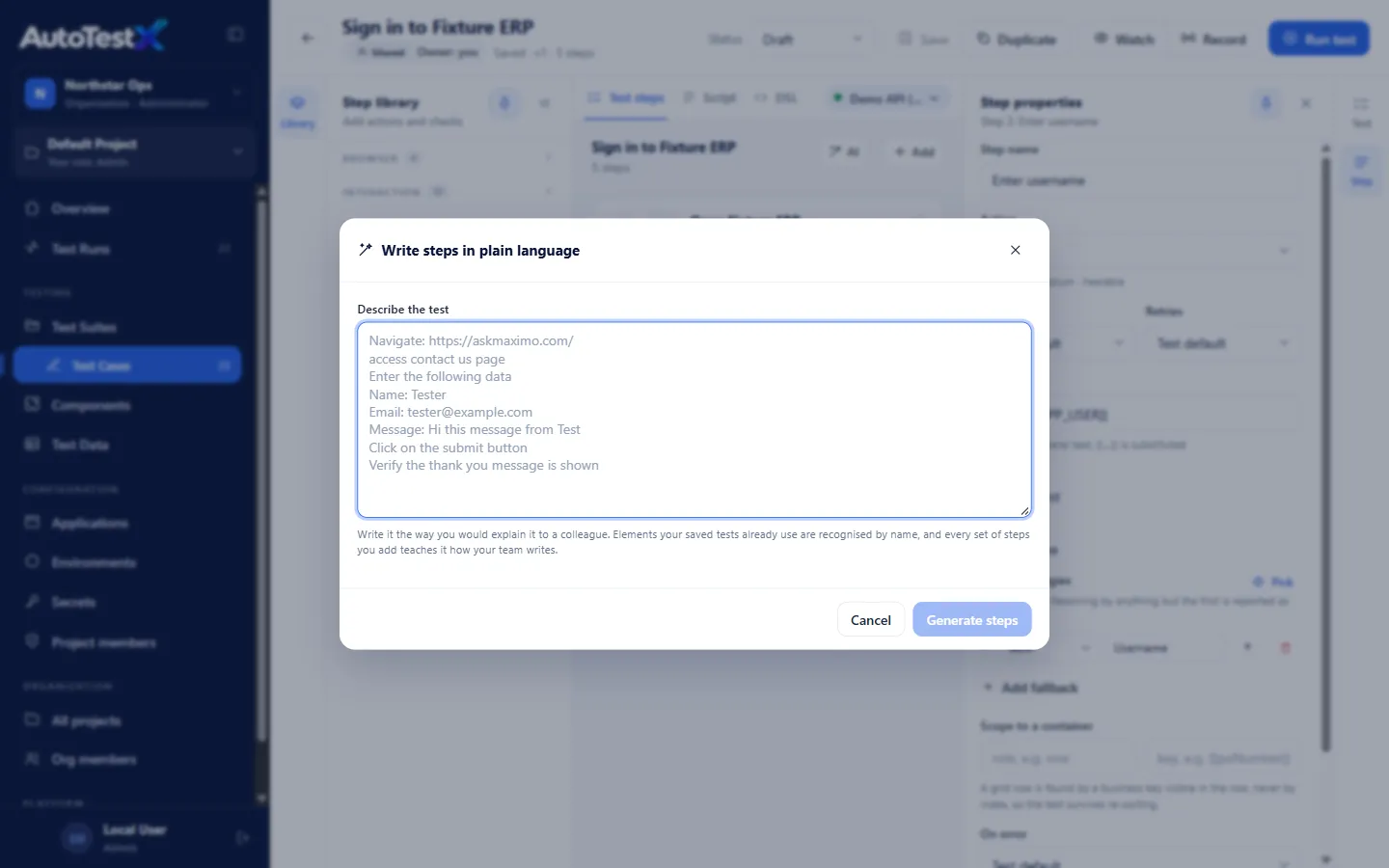
There are two ways to create tests with AI in AutoTestX:
| Write with AI (this page) | An AI chat | |
|---|---|---|
| Where | In the test editor | Claude or a similar chat, outside AutoTestX |
| You write | Plain-language steps | The master prompt from the Prompt guide |
| You get | Steps added to the open test | A complete test file to import |
| Use it for | Most UI tests; adding steps to a test | Loops, If / Else, data-driven tests, API tests, cleanup, converting many manual cases |
Start with Write with AI. Use an AI chat when the test needs something Write with AI does not generate (see Limits).
Requirements
Section titled “Requirements”It runs on your organization’s AI key: your own Anthropic key, or the AutoTestX
key. On the AutoTestX key the server must have ANTHROPIC_API_KEY set; without it the dialog
shows “The AI step writer is not connected…” (see Configuration).
When the organization has no key it may use, the dialog says why and Generate steps is
disabled.
Using it
Section titled “Using it”-
Select the environment the test runs against. The writer uses its variable and secret names.
-
In the editor, choose Write with AI (AI on narrow screens).
-
Under Describe the test, write the steps. See Writing a good description.
-
Choose Generate steps (or Ctrl+Enter).
-
Review the proposed steps. Each one shows:
- the action and its details,
- from “…”: the part of your text it came from,
- any validation problem.
Notes at the top list anything that was not turned into a step, and any assumptions made. Read them: a note usually means your description was unclear at that point.
-
Untick the steps you do not want. Regenerate tries again from your text. If the same step keeps coming out wrong, reword that line instead of regenerating.
-
Choose Add n steps. They are inserted after the selected step, or at the end if none is selected.
-
Use Pick to confirm any target for an element your project’s tests have not used before.
-
Run the test once, then Save.
Writing a good description
Section titled “Writing a good description”The writer already knows the step types, your environment and the elements your project’s tests use. What it needs from you is which actions, on which elements, and what exactly to check.
| Do | Example |
|---|---|
| Write one action per line | Click "Save". and Check that … on separate lines |
| Use the words on the screen, in quotes | Click the "New Purchase Order" button. |
| Say what kind of element it is | button, link, field, dropdown, checkbox, tab, heading |
| Name a test id when you know one | the PO number (test id po-number) |
| Start every check with Check that, and give the exact text | Check that the alert shows exactly "Invalid credentials". |
| Name secrets, never type real passwords | sign in with APP_USER and APP_PASSWORD |
| Say Remember … as name for values used later | Remember the text of the PO number as poNumber. |
| Say soft check for a check that must not stop the test | Check that the status is "Approved" - soft check. |
| For a negative test, also check that nothing happened | Check that the heading "Purchase Orders" is not visible. |
The same test, described three ways:
Too vague. The writer has to guess the screens, the data and what “works” means.
Test creating a purchase order.Better, but loose. The checks are unclear and the elements are not named.
Log in, create a purchase order for Globex with item 1234 qty 2, save it and check it worked.Good. Every line is one action or one exact check.
Open the application.Type {{secret.APP_USER}} into the "Username" field.Type {{secret.APP_PASSWORD}} into the "Password" field.Click the "Sign In" button.Check that the heading "Purchase Orders" is visible.Click the "New Purchase Order" button.Select "Globex" in the "Vendor" dropdown.Type 1234 into the "Item" field.Type 2 into the "Quantity" field.Click "Add Item".Click "Save".Remember the text of the PO number (test id po-number) as poNumber.Check that poNumber starts with "PO-".Check that the status (test id po-status) is exactly "Approved" - soft check.More complete prompts, each with the steps it produced, are in AI prompt examples (examples 1 and 2 are for Write with AI). A fill-in template is in the Prompt guide.
What it knows
Section titled “What it knows”To propose accurate steps, the writer is given:
- The step catalogue: only real step types are proposed, and every step is validated before you see it.
- The selected environment: its
baseUrl, variable names and secret names (never secret values), so it can write{{secret.APP_PASSWORD}}. - The test so far, so new steps continue it.
- Elements your saved tests already use in this project. “Click Save” in a Maximo test becomes the real locator your team already uses, not a guess.
- Conversions your team accepted before. Each time you add generated steps, the text and the steps are kept as an example for this project (up to 200), so the writer learns your team’s phrasing.
Examples are stored per project and never shared with another project. Because accepted conversions are learned, untick wrong steps rather than adding them and fixing them later; otherwise the writer learns the mistake.
Limits
Section titled “Limits”- Only flat steps are generated. Loops, conditions and lookups are built in the editor, or written by an AI chat using the Prompt guide.
- Data-driven settings, cleanup steps and API setup are not generated. Use an AI chat (see examples 5 and 7 in AI prompt examples).
- Targets for elements no saved test has used yet are best guesses. Use Pick to confirm them.
- Generated steps are a draft. Nothing is saved until you save the test.
- The save that adds AI steps must keep the test a Draft, even for a Test Manager or Admin. Choosing Ready in that same save is refused with “This save adds steps written by AI…”. Save as Draft, review the steps in place (run it, Pick any guessed targets), then mark it Ready in a second save. Imports follow the same rule. To practise it, see the Draft review exercises.
See also
Section titled “See also”- Prompt guide: writing tests with AI: what information the AI needs, templates for both options, the master prompt for AI chats
- AI prompt examples: seven worked prompts with the tests they produced
- Recording and picking elements: confirm or capture targets